Skip to content
Kakobuy logoKakobuy Spreadsheet First Order Guide

The official sequence, explained for a first order

How to order with Kakobuy, in eight steps.

Use the official screens below to find your place in the buying process. Follow the steps in order; open the related decision guide when you need to judge a fee, a photo or a shipping option.

Steps checked against Kakobuy’s official buying guide on 15 October 2026. These are older official tutorial images: prices, balances, coupons, route examples and legacy labels are illustrative. Current product, order and parcel screens govern your purchase. Every image opens at full size.

Official Kakobuy buying guide ↗ · First-order cost switchboard

01

Select a product

Start with a saved listing, an image or a keyword. The three methods lead to the same decision: is this the exact product and seller you want? Keep the original link for later comparison.

Browse categories and judge a listing →
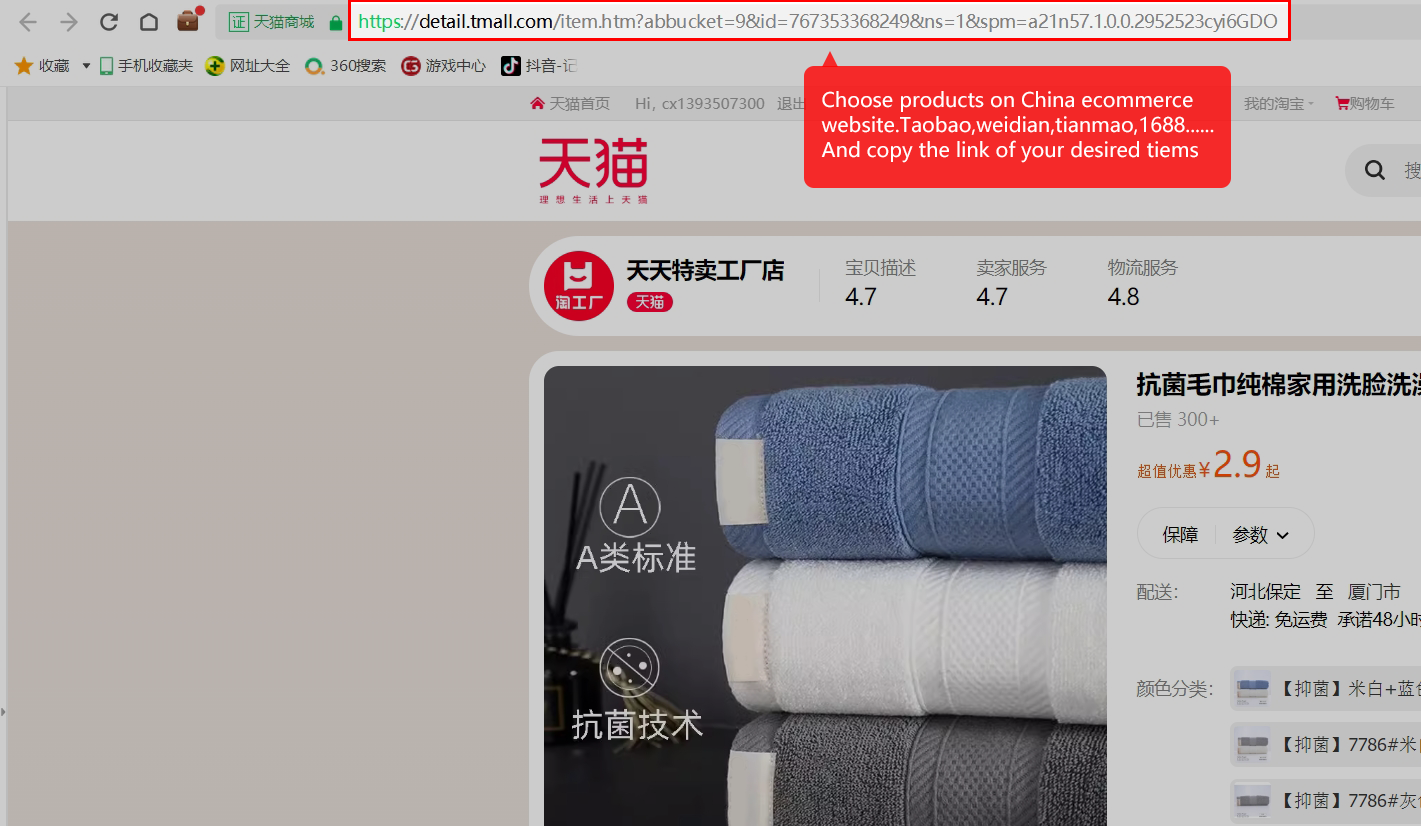
Copy the original marketplace product link
Copy the original marketplace product link. The source product page is the starting point. Copy the item address, not a shop homepage or a screenshot URL. Open full-size image 01 ↗
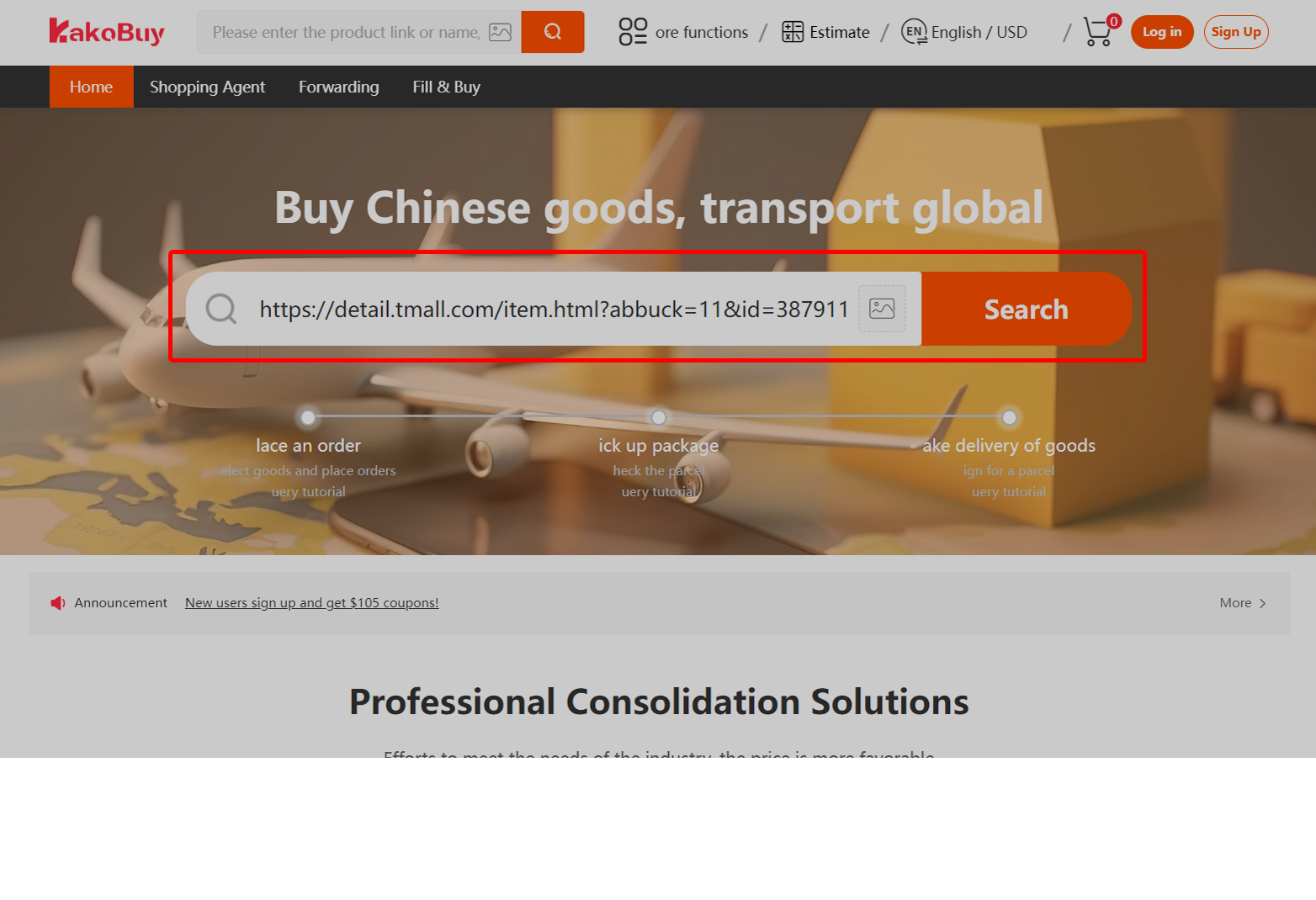
Paste the link into Kakobuy’s product search
Paste the link into Kakobuy’s product search. Search using the copied URL. Check that the product Kakobuy imports is the listing you intended. Open full-size image 03 ↗
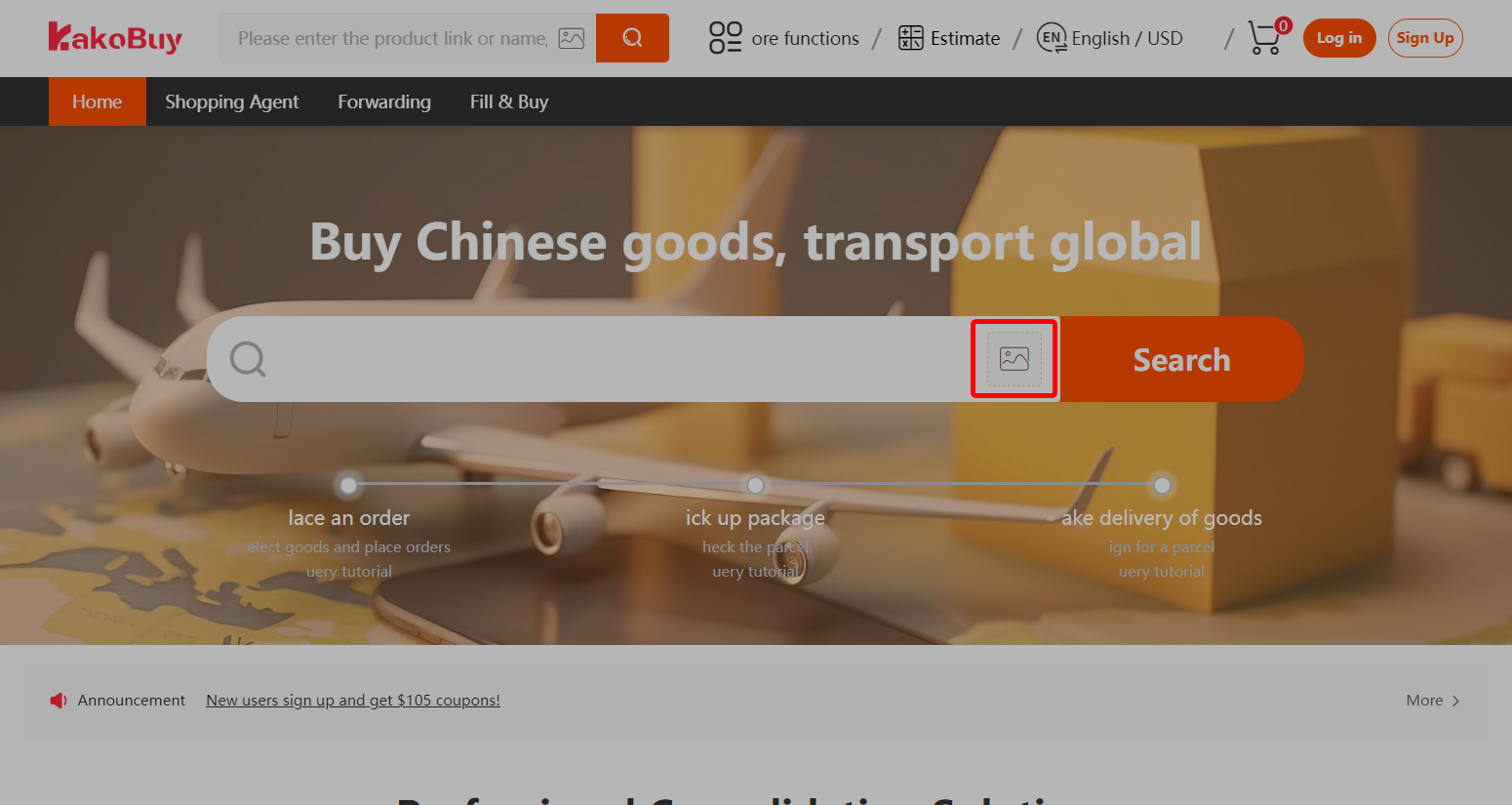
Use the image-search button when you have a reference photo
Use the image-search button when you have a reference photo. The picture icon is another way to discover a listing. Similar-looking results still need their own seller and variant checks. Open full-size image 02 ↗
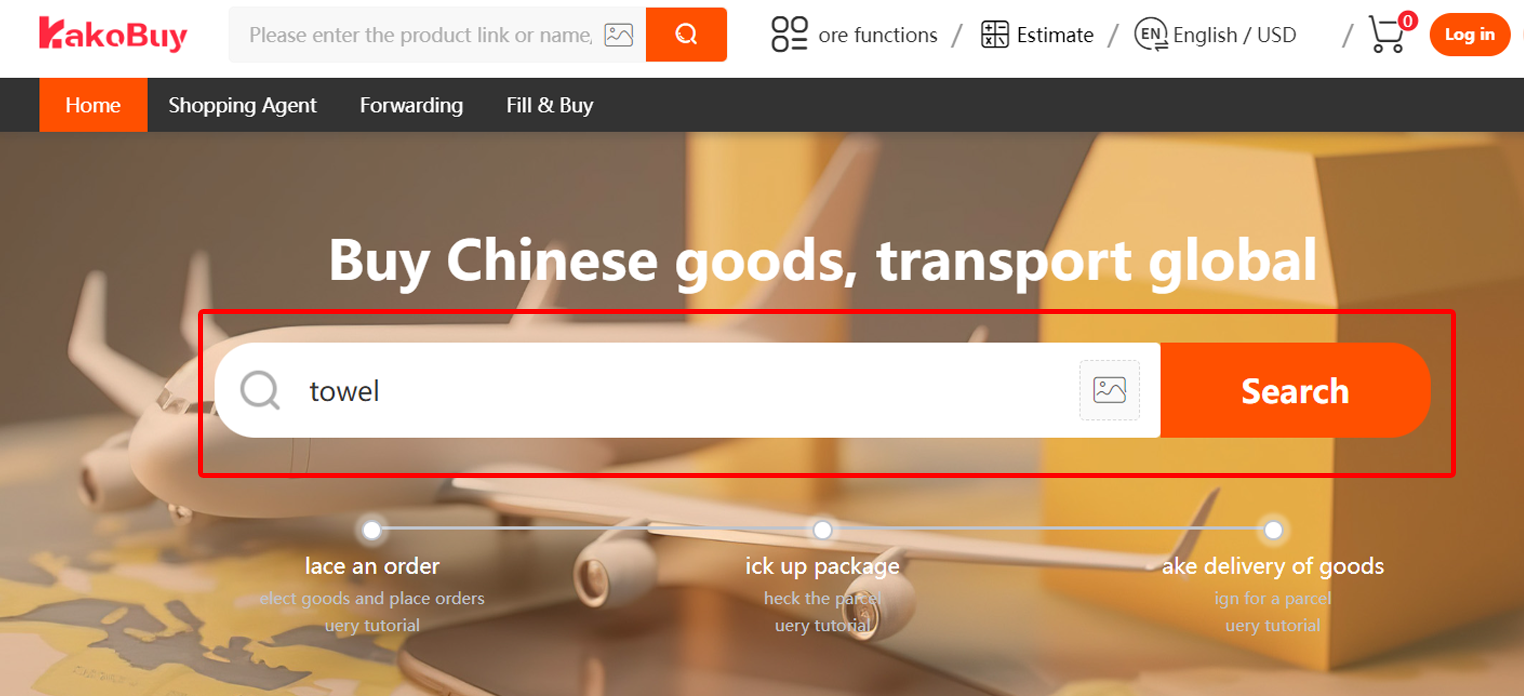
Search by a product keyword
Search by a product keyword. A keyword such as the tutorial’s “towel” example starts discovery. Open a result and inspect its actual options. Open full-size image 04 ↗
02

Submit the purchasing order

Specify the real size, colour and quantity. The manual form is an alternative within this step, with its own terms; it is not a way to bypass product restrictions.

Check imported and manual orders →
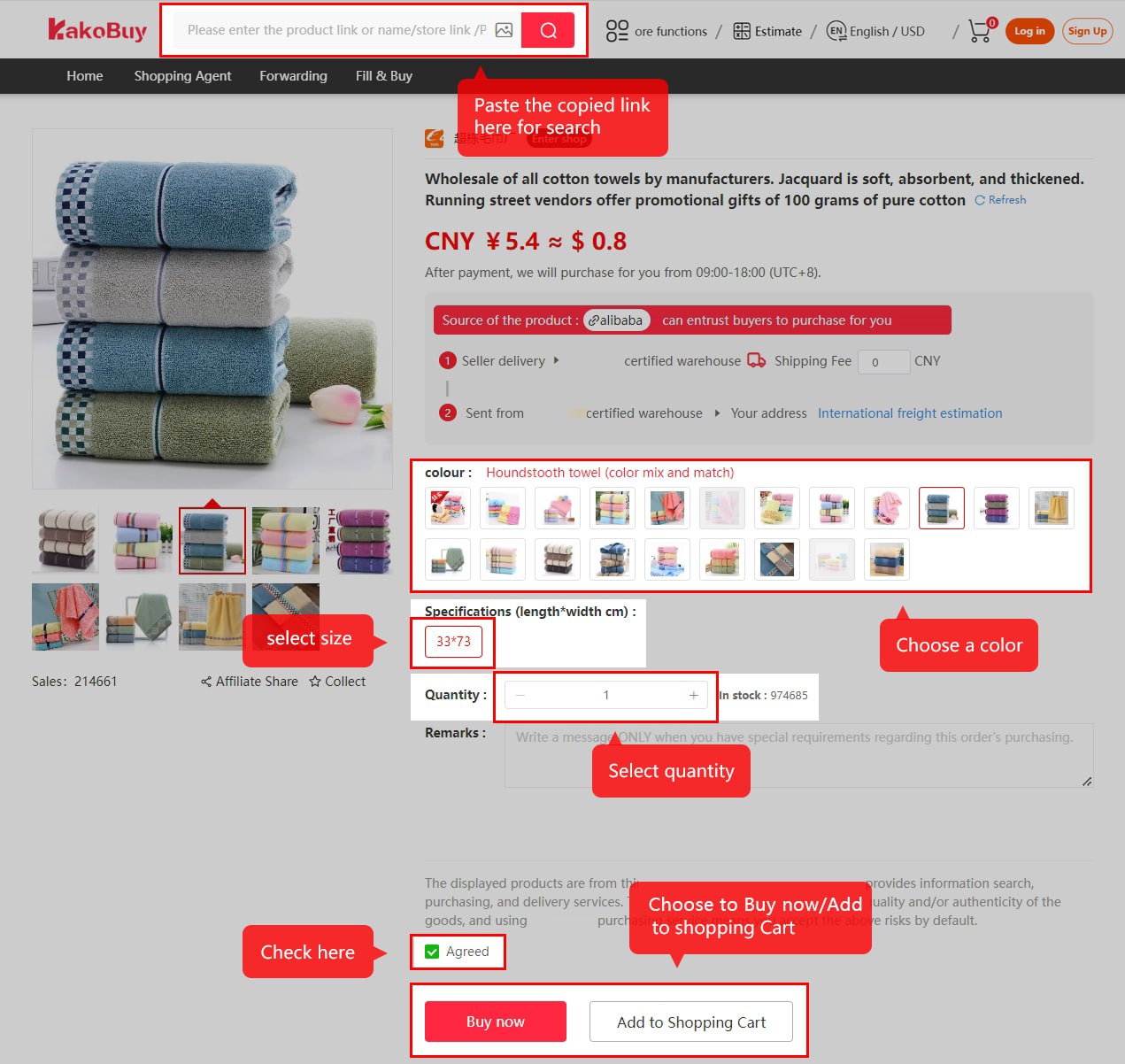
Choose colour, size and quantity before buying
Choose colour, size and quantity before buying. The highlighted controls select the variant and quantity. Read the agreement and any seller delivery charge before adding to cart or buying. Open full-size image 05 ↗
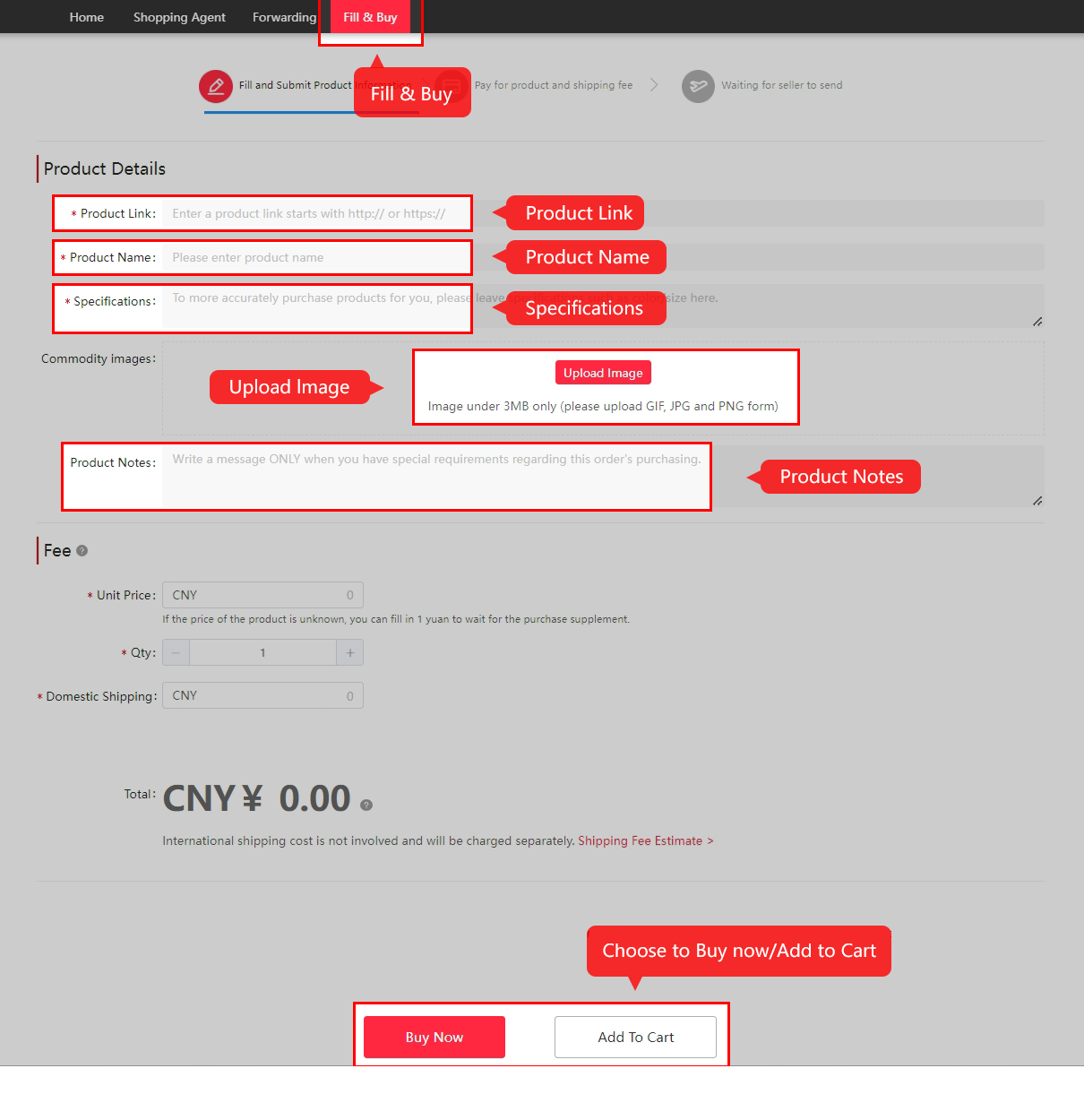
Use Fill & Buy when automatic import cannot describe the item
Use Fill & Buy when automatic import cannot describe the item. Supply the product URL, name, specification, image and pricing information. Use the current Kakobuy form and terms. Open full-size image 06 ↗
03

Make the first payment

Pay for the goods and domestic delivery to the warehouse. Review the actual debit, credited currency and processor charge before confirming.

Compare payment costs →
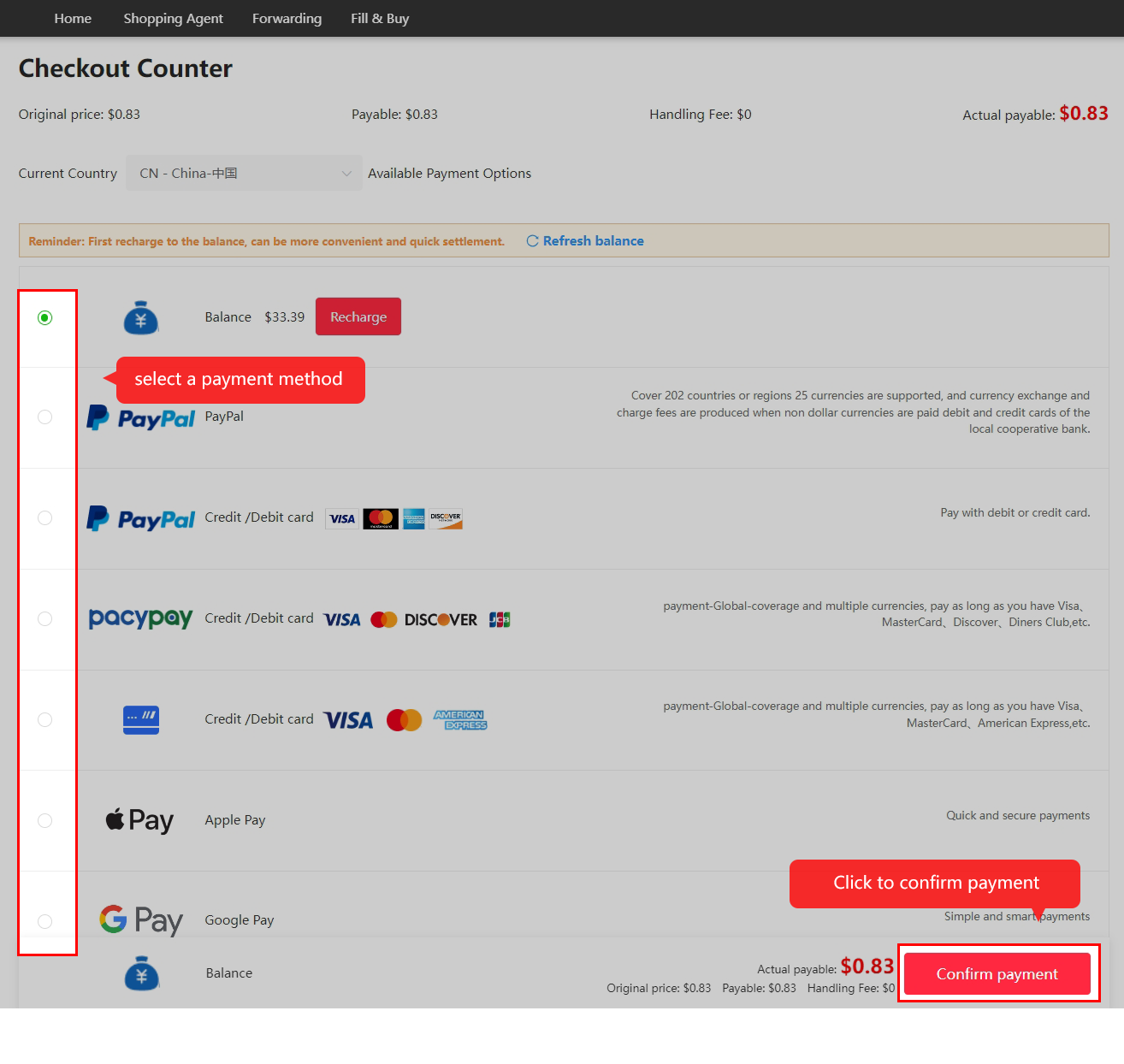
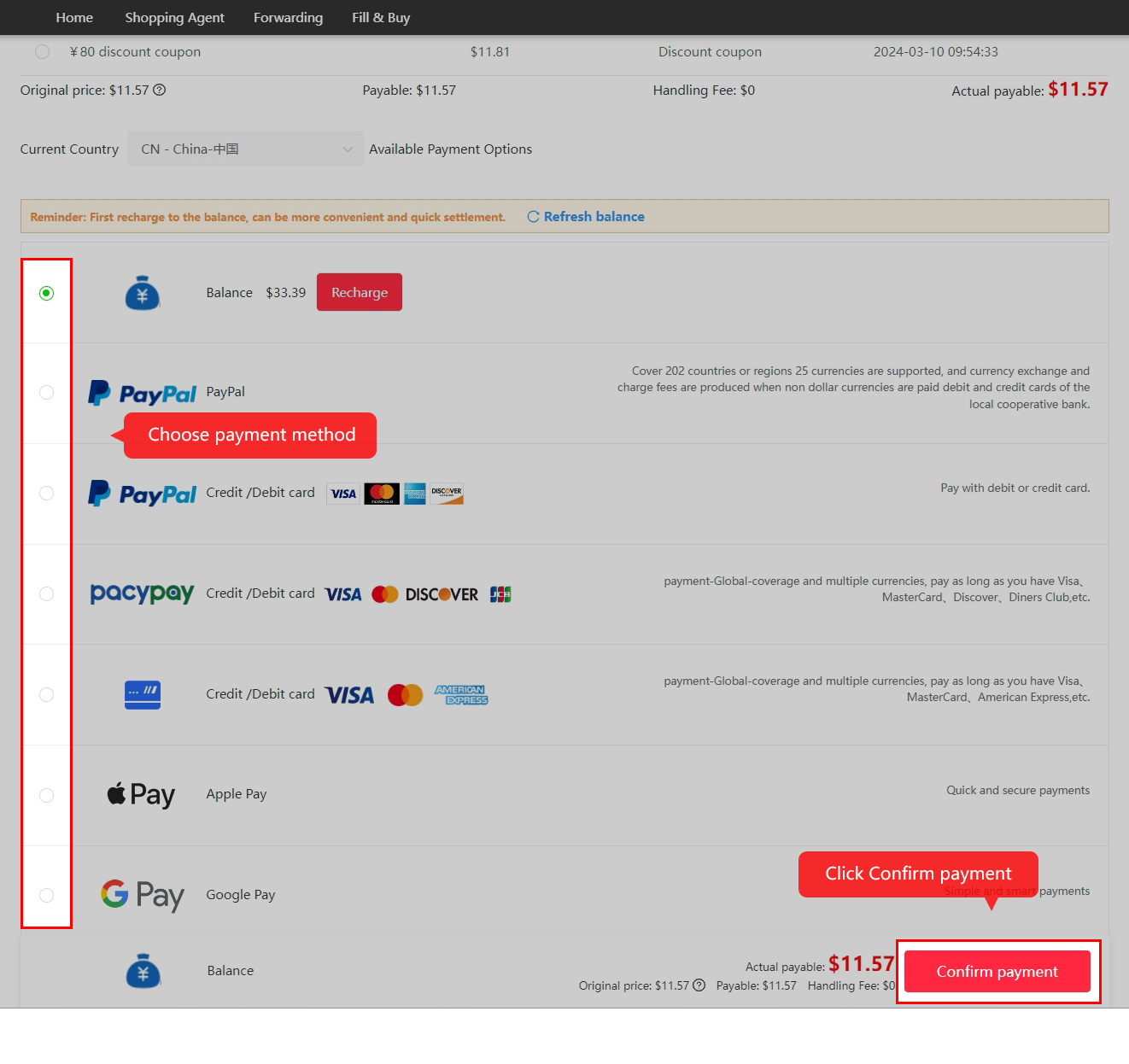
Pay for the item and seller’s domestic delivery
Pay for the item and seller’s domestic delivery. This is the first payment. Confirm the amount and the payment method actually available to your account; international freight comes later. Open full-size image 07 ↗
04

Let the buyer and seller process the order

Watch the order status and respond to any stock, variant or price question. Priority purchase affects the buyer’s queue; it cannot make the seller dispatch faster.

Decide whether priority purchase helps →

Wait for purchasing review and the seller’s dispatch
Wait for purchasing review and the seller’s dispatch. Kakobuy processes the request and the merchant sends the item to the warehouse. Read messages about stock or price differences; timing depends on both parties. Open full-size image 08 ↗
05

Review QC and warehouse storage

Inspect the actual item while a remedy may still be available. The return conditions and the storage deadline are different clocks; neither replaces the need to review your photos.

Read the QC checking sequence →
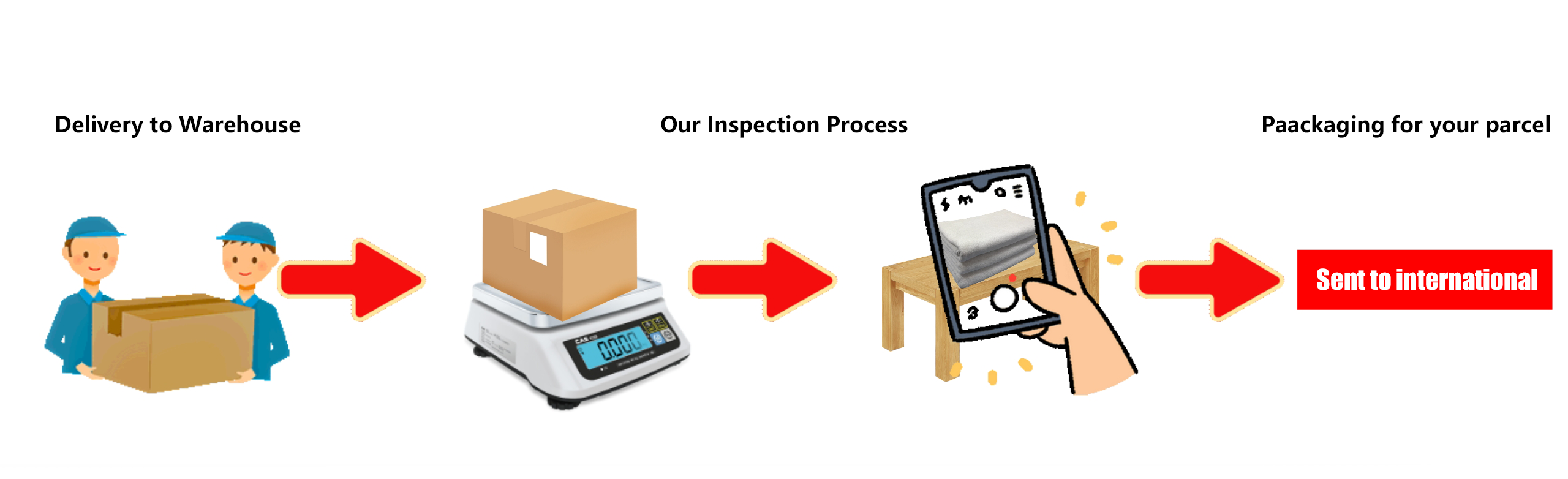
The warehouse receives and inspects the goods
The warehouse receives and inspects the goods. This official diagram shows arrival, inspection and the later packing stage. Visual inspection is not a laboratory, authenticity or functional test. Open full-size image 09 ↗
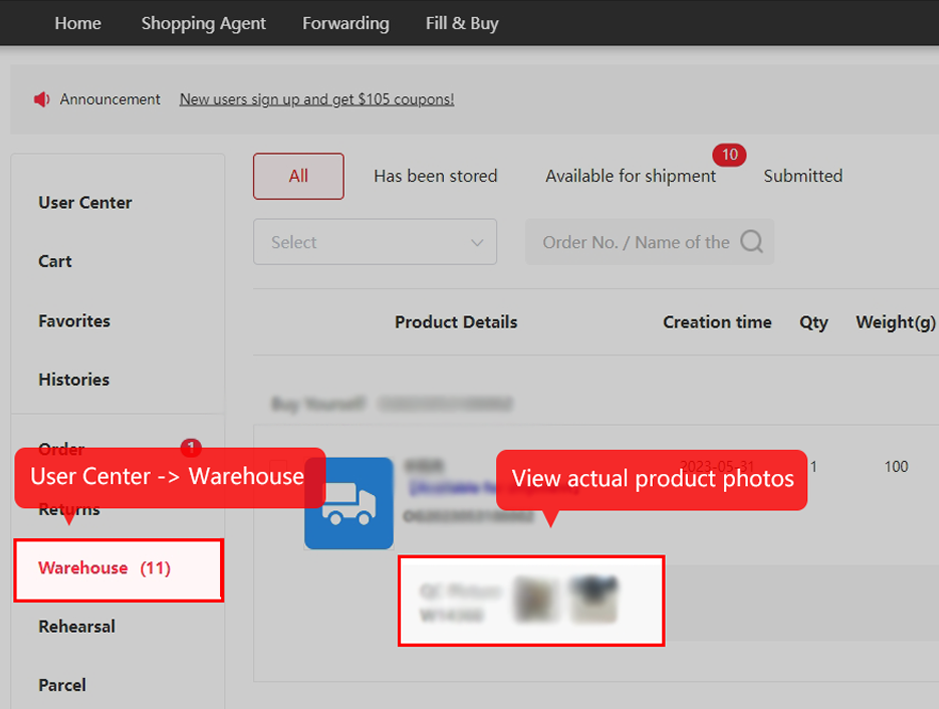
Open the item’s QC photos in Warehouse
Open the item’s QC photos in Warehouse. Use User Center → Warehouse and the item’s photo area. Compare the ordered variant, visible condition and any requested measurements before shipping. Open full-size image 10 ↗
06

Submit shipment and pay international freight

Select stored goods, verify the address and packing, choose a compatible route, then review the second payment. Use packed measurements and the selected line’s charging rules.

Compare lines, weight and insurance →
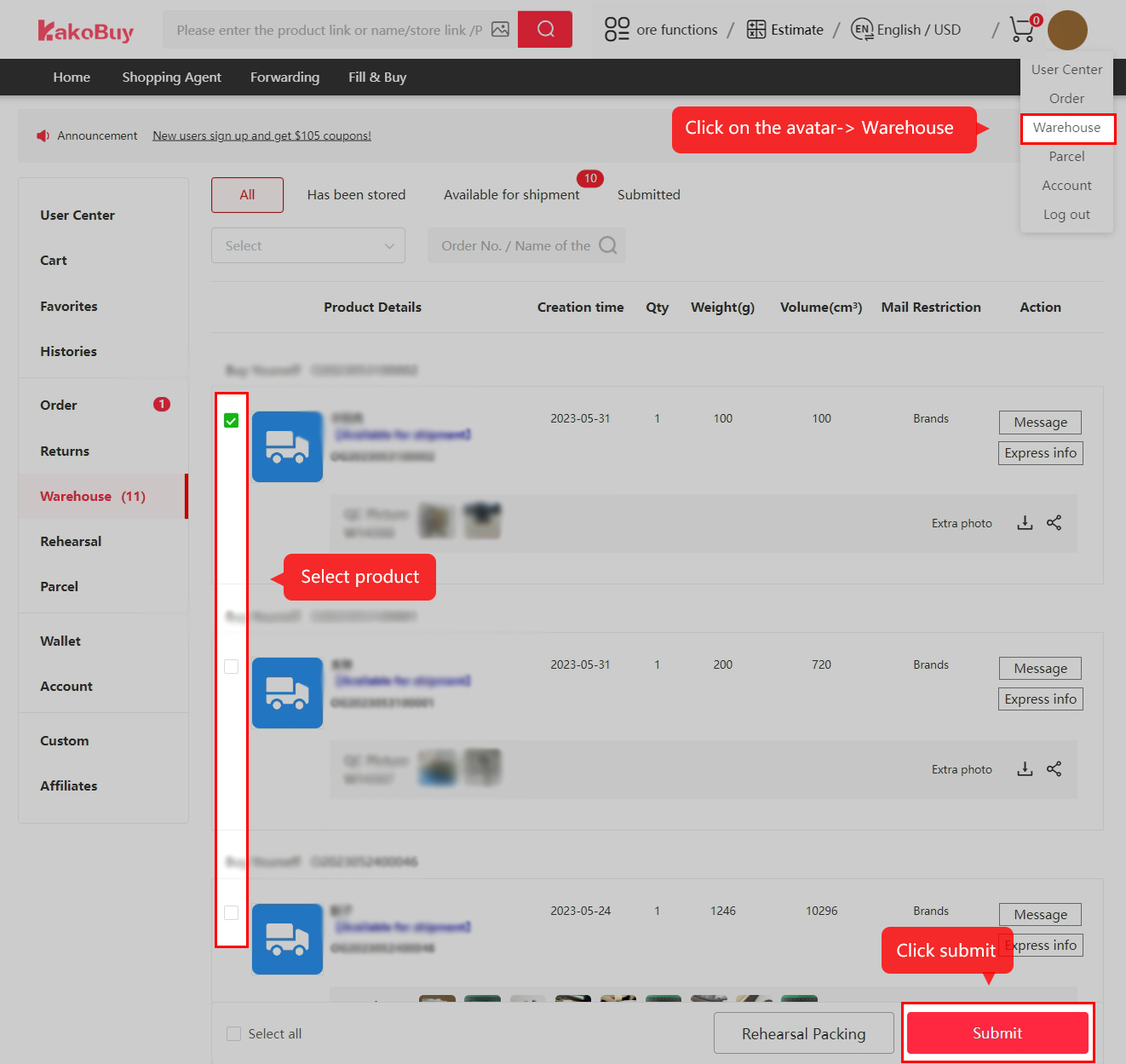
Select the stored items for your parcel
Select the stored items for your parcel. Choose only the items you intend to ship and use Submit. Confirm any outstanding QC or return question first. Open full-size image 11 ↗
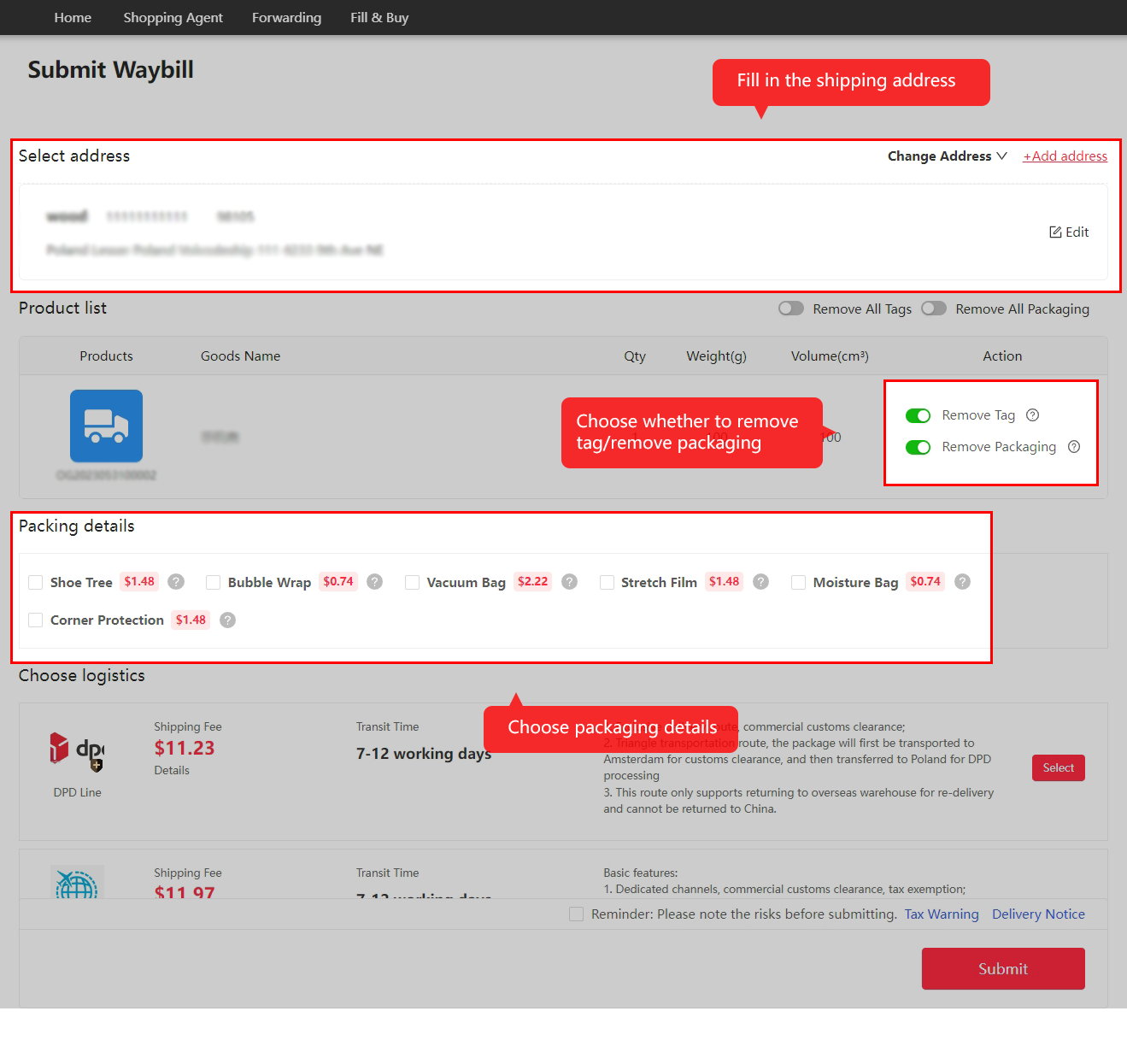
Enter the address and choose packing options
Enter the address and choose packing options. Check the recipient details, phone and required tax information. Decide whether original packaging is needed and whether the contents require protection. Open full-size image 12 ↗
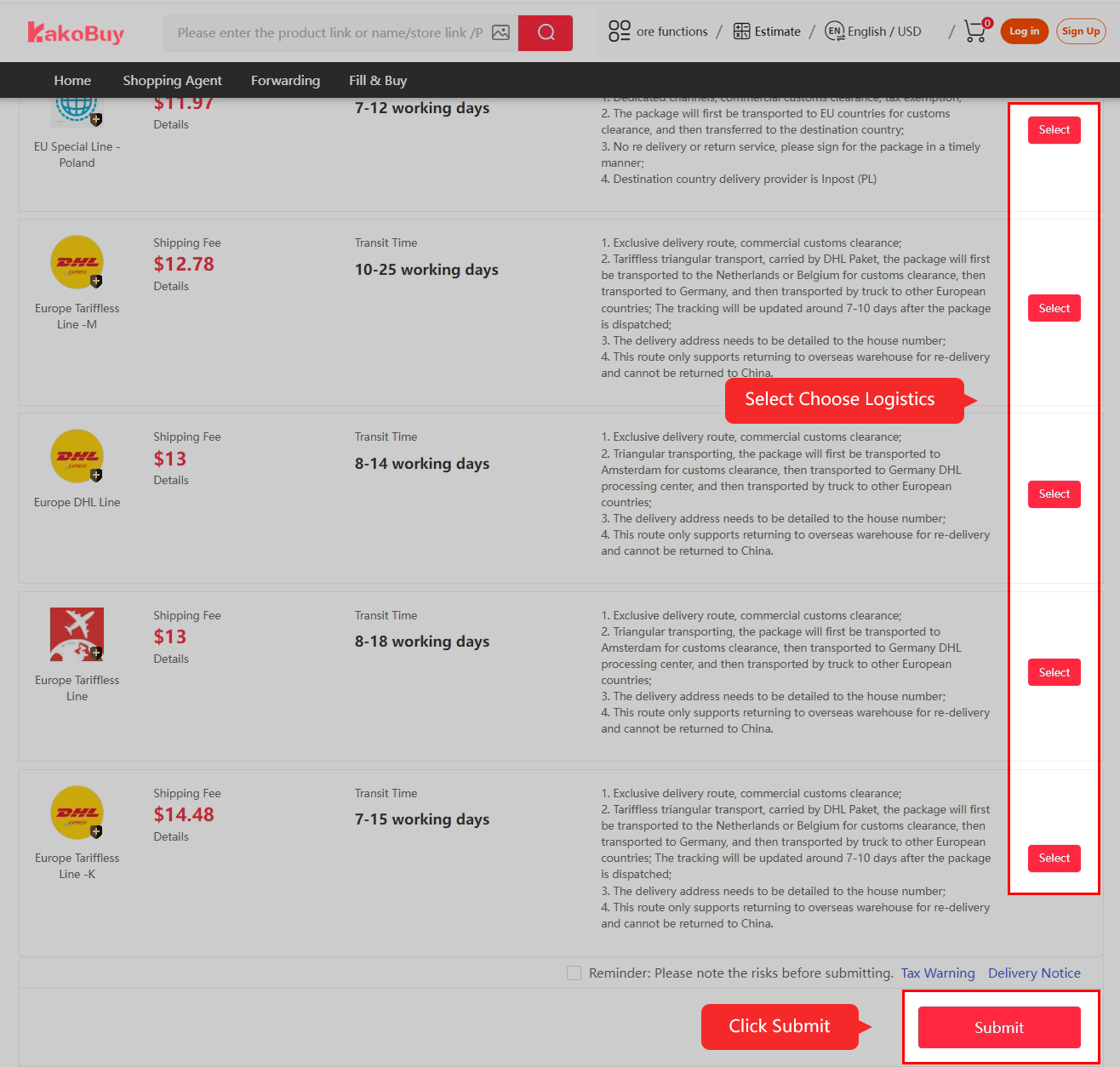
Choose an eligible logistics service
Choose an eligible logistics service. Read the line’s restrictions and charging method before selecting it. The Poland and Europe routes pictured are historical examples, not current quotes for your destination. Open full-size image 13 ↗
Review the parcel checkout and pay international fees
Review the parcel checkout and pay international fees. Check the line, services, any valid coupon and final amount. This payment is separate from the first item payment. Open full-size image 14 ↗
07

Follow outbound processing and tracking

The parcel is prepared and handed to logistics. Keep the parcel number and check messages as the international and local-carrier stages develop.

Understand packing and weight corrections →
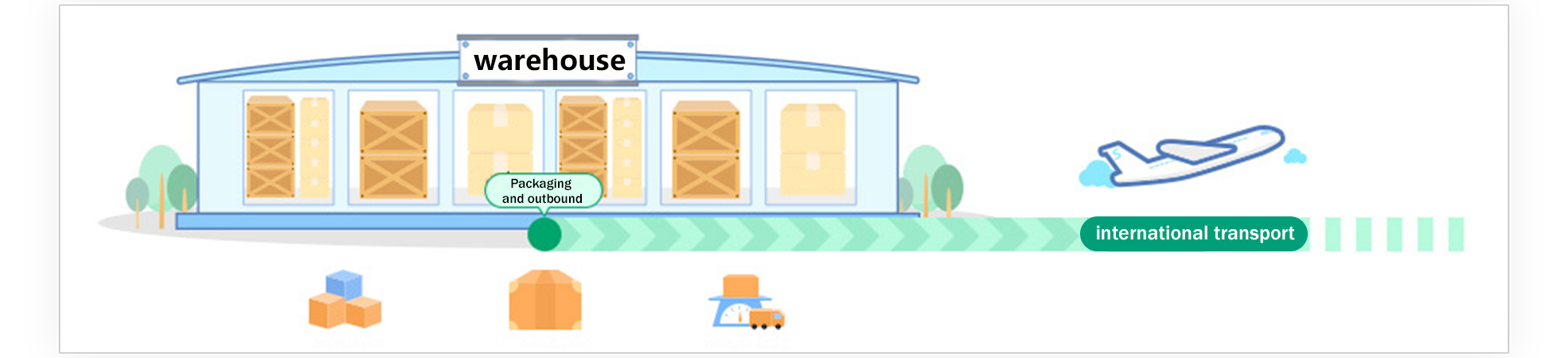
The warehouse prepares the parcel for outbound transport
The warehouse prepares the parcel for outbound transport. Packing and handover follow the parcel’s actual processing status. The billed parcel weight can include packing and may be subject to volume rules. Open full-size image 15 ↗
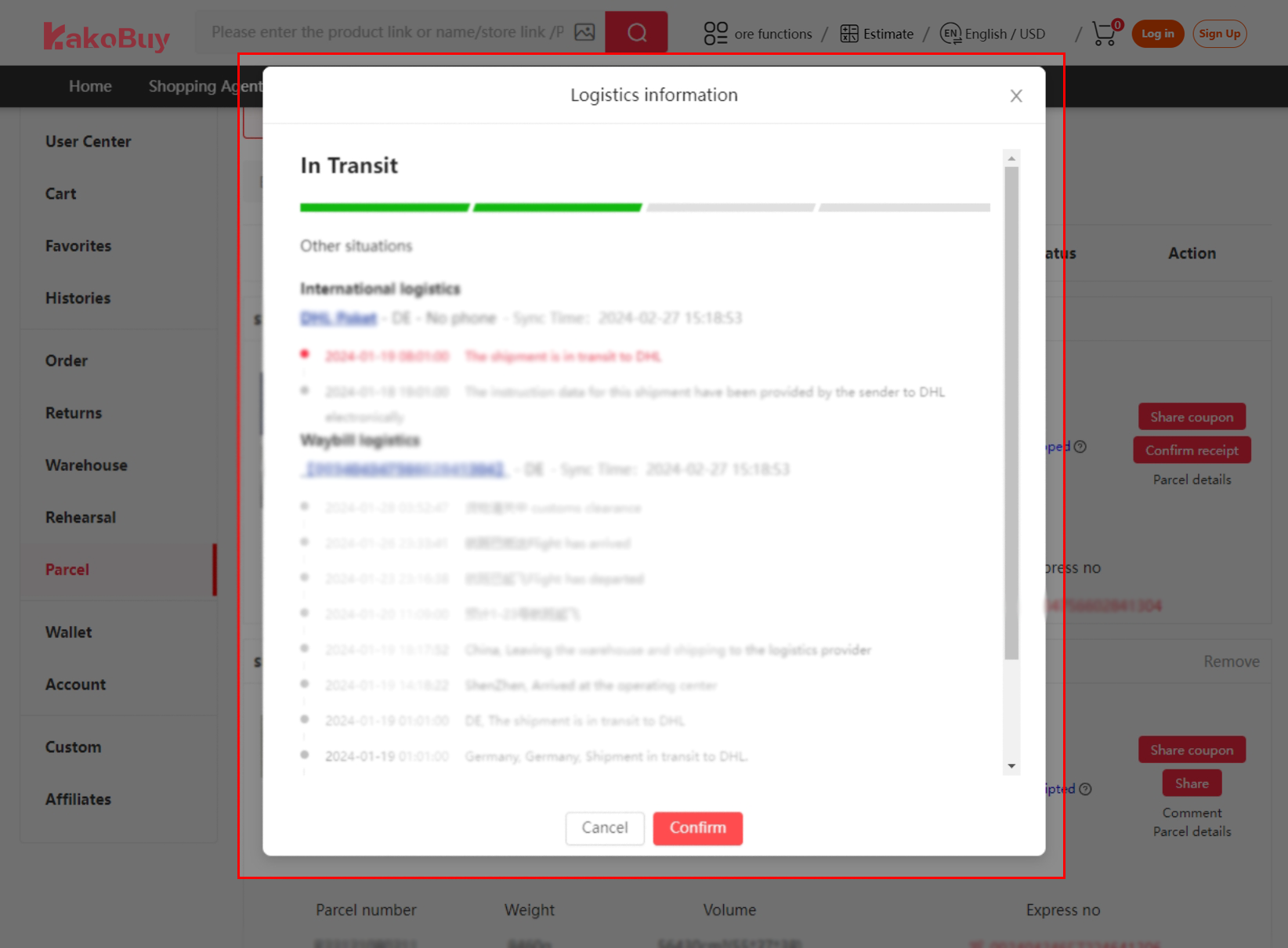
Follow logistics events from the parcel record
Follow logistics events from the parcel record. Tracking may show separate international and waybill events. A gap between scans alone does not prove loss; use the parcel support channel if the actual status needs investigation. Open full-size image 16 ↗
08

Receive, inspect and confirm

Check the parcel and contents before confirming receipt. Preserve the packing and original evidence if anything is wrong, and report through the official order or parcel channel promptly.

Prepare your delivery evidence →
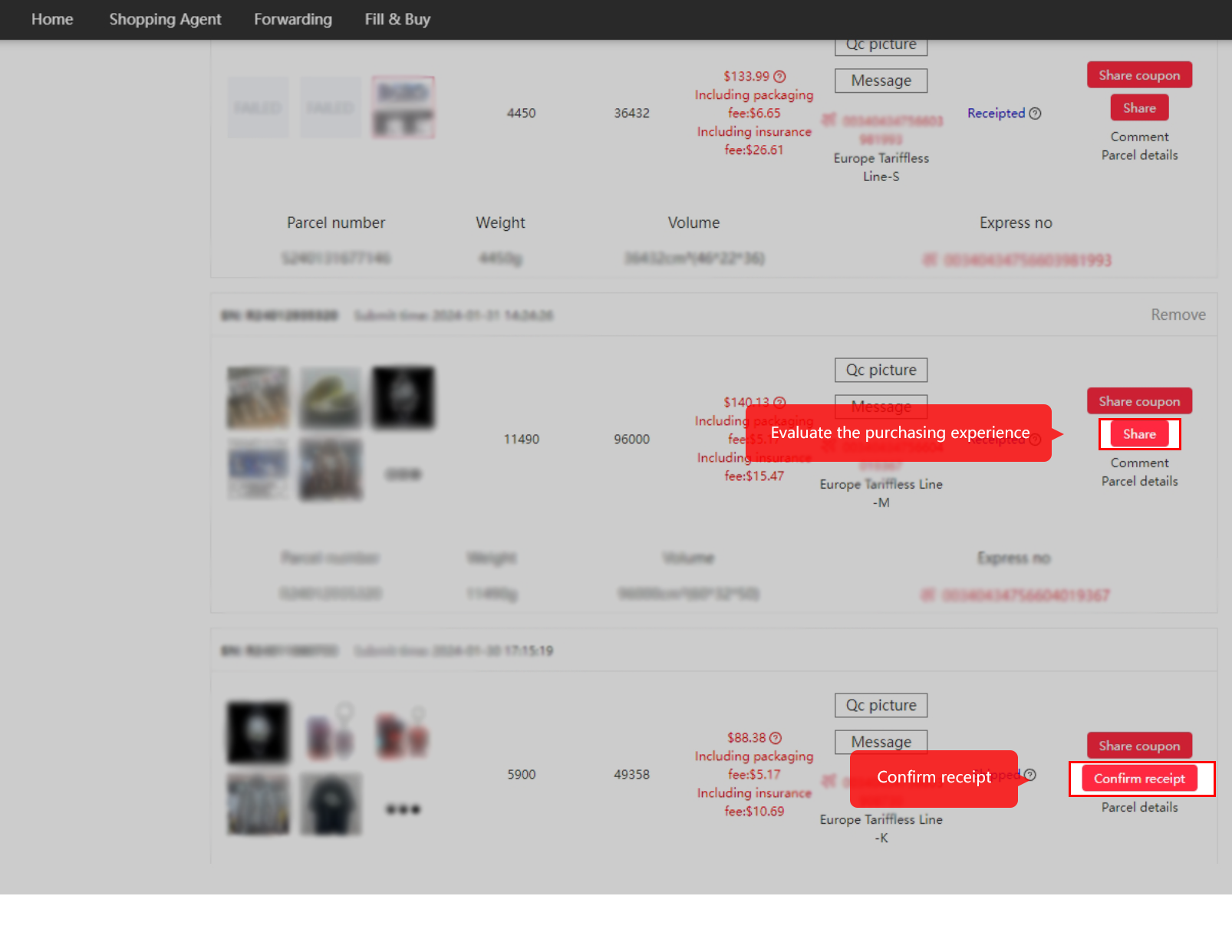
Inspect delivery, then confirm receipt
Inspect delivery, then confirm receipt. The parcel list includes Confirm receipt. Check your delivered contents first and document any genuine issue promptly with the relevant parcel details. Open full-size image 17 ↗

Keep the details beside your order.

The eight steps tell you what happens next. The ten-decision pages help you decide what to select, when to request evidence and which charges to compare.

Review all ten decisions →